
Understanding the Impact of Poor Posture in Remote Work
Why Slouching Happens When Working from Home
Slouching during remote work is a common issue that arises from the lack of a structured office environment. At home, many people work from couches, beds, or dining tables, which are not designed for extended computer use. These informal setups encourage leaning forward or hunching over laptops, leading to poor posture. The absence of ergonomic awareness and frequent distractions further contribute to unhealthy positioning, making slouching an almost automatic habit during long work hours.
The Long-Term Health Consequences of Poor Ergonomics
Poor posture can lead to a variety of health problems over time, such as chronic back and neck pain, muscle fatigue, and headaches. The strain on spinal discs and joints may increase the risk of developing musculoskeletal disorders, affecting overall mobility and comfort. Additionally, consistent slouching can impair breathing and circulation, which indirectly impacts energy levels and productivity. Addressing ergonomic issues early helps prevent these long-lasting effects and supports both physical and mental well-being.
Core Principles of Ergonomic Design for Home Offices
Essential Ergonomic Elements to Include
Creating an ergonomic home workspace involves several key elements that work together to support the body naturally. Proper chair design, desk height, monitor placement, and keyboard positioning all play a role in maintaining neutral postures. Optimal ergonomic setups encourage the spine to remain aligned, wrists to stay straight, and eyes to look forward without strain. Integrating these elements reduces tension and fatigue, making work more comfortable and sustainable.
Choosing the Right Furniture and Equipment
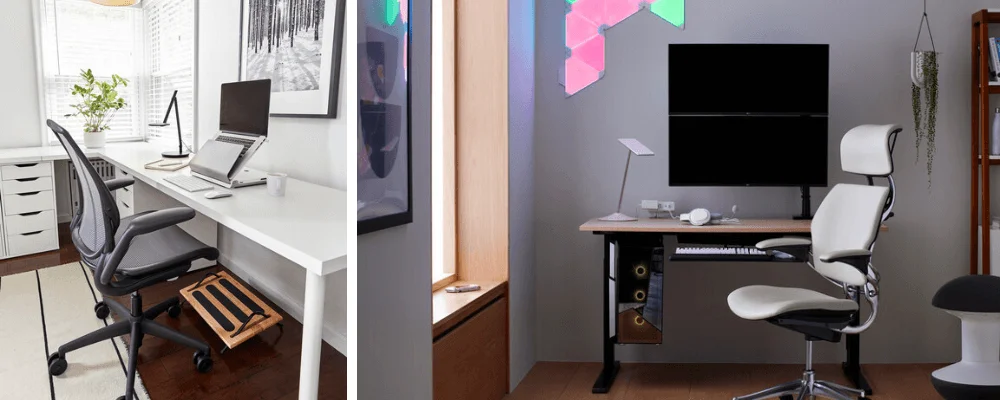
Furniture and equipment selection significantly affects ergonomic success. Chairs with adjustable height, lumbar support, and armrests help customize seating to individual needs. Desks with enough surface area and height options accommodate various tasks and postures. Monitors should be placed on stands or adjustable arms to avoid neck tilting. Investing in ergonomic keyboards and mice that promote natural wrist alignment also contributes to minimizing repetitive strain. Thoughtful choice of these items sets the foundation for an effective ergonomic workspace.
Step-by-Step Guide to Setting Up Your Ergonomic Workspace
Desk and Chair Positioning Tips
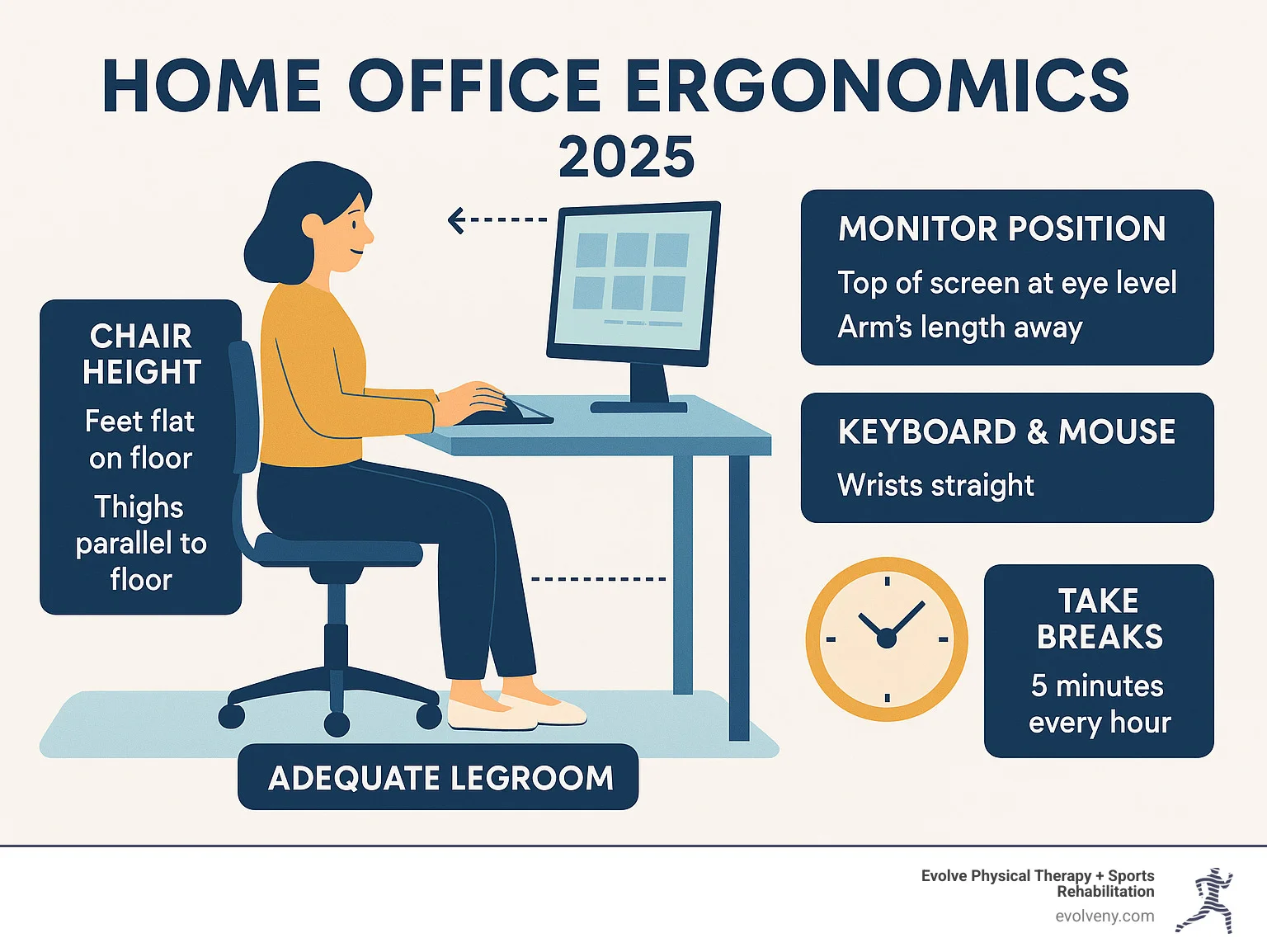
Start by adjusting your chair so that your feet rest flat on the floor or on a footrest, and your thighs are parallel to the ground. The chair’s lumbar support should fit the curve of your lower back to prevent slumping. Position your desk height so that your elbows rest comfortably at about a 90-degree angle when typing. This setup promotes an upright posture and reduces unnecessary pressure on your lower back and shoulders.
Monitor Placement to Maintain Proper Neck Alignment
The monitor should be directly in front of you at about an arm’s length distance. The top of the screen should align with your eye level to keep the neck in a neutral position. Avoid placing the screen too low or too high, as this encourages tilting your head forward or backward, causing strain. If using multiple monitors, position them so that you can glance between screens without twisting your neck repeatedly.
Keyboard and Mouse Setup for Wrist Health
Place the keyboard and mouse close enough to avoid reaching forward, which can lead to rounded shoulders and wrist strain. The keyboard should be flat or tilted slightly away from you to keep wrists straight. Consider using padded wrist rests for additional comfort, but be cautious not to rely on them excessively, as they can sometimes promote bending rather than support. Keeping input devices properly aligned with your forearms helps maintain wrist health during prolonged work periods.
Daily Habits to Reinforce Good Posture
Incorporating Stretching and Movement Breaks
Even the best ergonomic setup can only do so much if you remain static for hours. Incorporating short stretching or movement breaks throughout the day helps alleviate muscle tension and encourages circulation. Simple stretches targeting the neck, shoulders, back, and wrists reduce the risk of stiffness. Standing up and walking around for a few minutes every hour refreshes both body and mind, supporting sustained posture awareness.
Using Reminders and Posture-Tracking Tools
Maintaining good posture requires consistent effort, which can be supported by reminders. Setting timers or using posture-tracking apps can prompt adjustments or breaks, helping prevent lapses into bad habits. Some digital tools provide real-time feedback on your posture using webcams or wearable sensors. These mechanisms create conscious awareness, making it easier to retrain your body for healthier work habits over time.
Optimizing Lighting and Environment for Comfort
How Lighting Affects Ergonomics
Lighting plays an essential role in ergonomic comfort by reducing eye strain and encouraging proper posture. Poor or harsh lighting can cause you to lean forward or squint to see the screen clearly, exacerbating slouching. Natural light is ideal, but if that’s not possible, use adjustable lamps that provide balanced illumination without glare. Positioning light sources to minimize reflections on your monitor allows for comfortable viewing angles and helps maintain upright head positioning.
Creating a Distraction-Free Workspace
A cluttered or noisy environment can distract attention and lead to restless postures or frequent shifting. Establishing a well-organized, quiet, and dedicated workspace helps focus energy on tasks while encouraging consistent posture. Minimizing distractions allows you to become more aware of your alignment and comfort, reducing the unconscious tendency to slump or lean into poor positions throughout the day.
Advanced Ergonomic Accessories to Enhance Your Setup
Standing Desks and Desk Converters
Introducing standing desks or desk converters allows you to alternate between sitting and standing positions, which alleviates continuous pressure on the spine. This flexibility helps maintain muscle engagement and reduces the monotony of fixed postures. Adjustable height workstations empower users to customize their setups dynamically, promoting ergonomic principles in varied postures and supporting spinal health.
Ergonomic Supports: Lumbar Cushions, Footrests, and More
Additional ergonomic supports can address specific needs and improve overall comfort. Lumbar cushions provide targeted lower back support, helping preserve the natural curve of the spine. Footrests ensure feet are grounded when chair height adjustments prevent touching the floor. Other aids such as monitor risers, document holders, and anti-fatigue mats contribute to a fully customized and supportive workspace. Choosing accessories that complement your setup enables better posture maintenance throughout the workday.


